
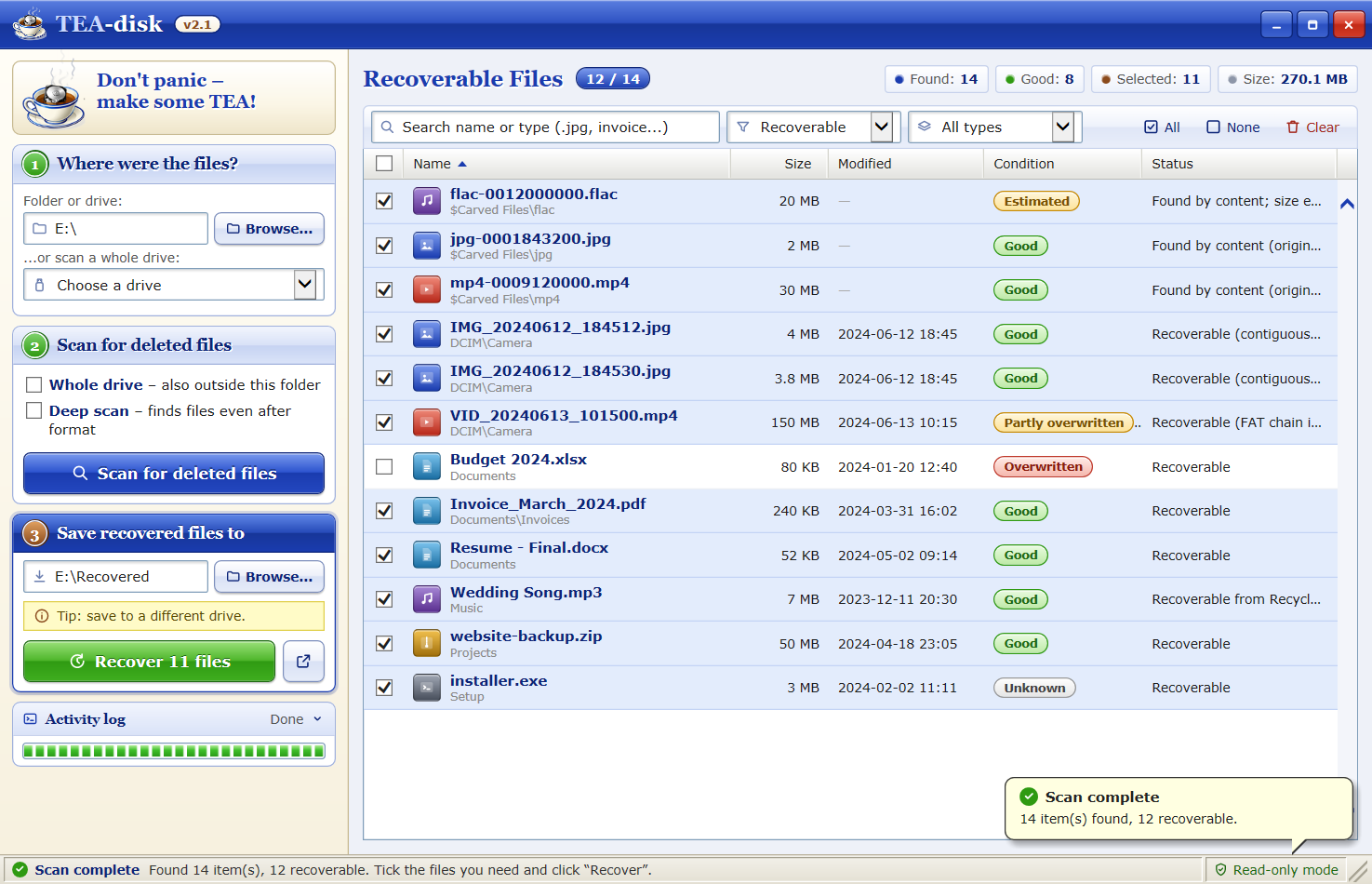
 Click to enlarge
Welcome to TEA-disk!
Deleted something important? Don't panic – make some TEA!
TEA-disk is a free and easy to use data recovery program for Windows. It brings back deleted photos, videos, music, documents and more from your hard disk, SSD, USB pendrive or memory card – even after you have emptied the Recycle Bin or formatted the drive.
TEA-disk is 100% read-only: it never writes to the drive you are recovering from, so it cannot make things worse.
What's New in Version 2.1 NEW!
- TEA-disk 2.1 – our recovery tool has a new name and a new logo. Same trusted engine, now served hot!
- Deep Scan finds 45+ file types by their content – works even after a format or on a RAW drive.
- Support for FAT32, FAT16 and exFAT – recover from pendrives and SD cards with their original names.
- Condition check shows if a file is still intact before you recover it.
Key Features
- Undelete files removed with Shift+Delete
- Recover from an emptied Recycle Bin
- Restore whole deleted folders
- Keeps original file names & folders
- Deep Scan after format / RAW drive
- NTFS, FAT32, FAT16, exFAT
- Hard disks, SSDs, pendrives, SD cards
- Condition check: Good / Overwritten
- Search, filter & sort results
- Read-only – 100% safe for your drive
Supported Devices
| Device | File system | Quick Scan | Deep Scan |
|---|---|---|---|
| Hard disk / SSD | NTFS | Yes | Yes |
| USB pendrive | FAT32, exFAT | Yes | Yes |
| SD / microSD card | FAT32, exFAT | Yes | Yes |
| External USB drive | NTFS, exFAT | Yes | Yes |
| Formatted / RAW drive | unknown | No | Yes |
| Phone internal memory | – | No | No |
* Phones cannot be read at this level from a PC. Take the memory card out and use a card reader.
Recoverable File Types
Quick Scan recovers any file type. Deep Scan recognises these formats by their content:
| Photos | JPG, PNG, GIF, BMP, WebP, HEIC, TIFF, PSD, camera RAW (CR2, CR3, NEF, ARW, DNG, ORF, RW2) |
|---|---|
| Videos | MP4, MOV, M4V, 3GP, AVI, MKV, WebM, WMV, FLV |
| Music | MP3, WAV, M4A, FLAC, OGG, Opus, MIDI |
| Documents | PDF, DOC, DOCX, XLS, XLSX, PPT, PPTX, ODT, EPUB, RTF, MSG |
| Archives | ZIP, RAR, 7z, APK, JAR |
| Programs | EXE, DLL, SQLite databases |
Screenshots
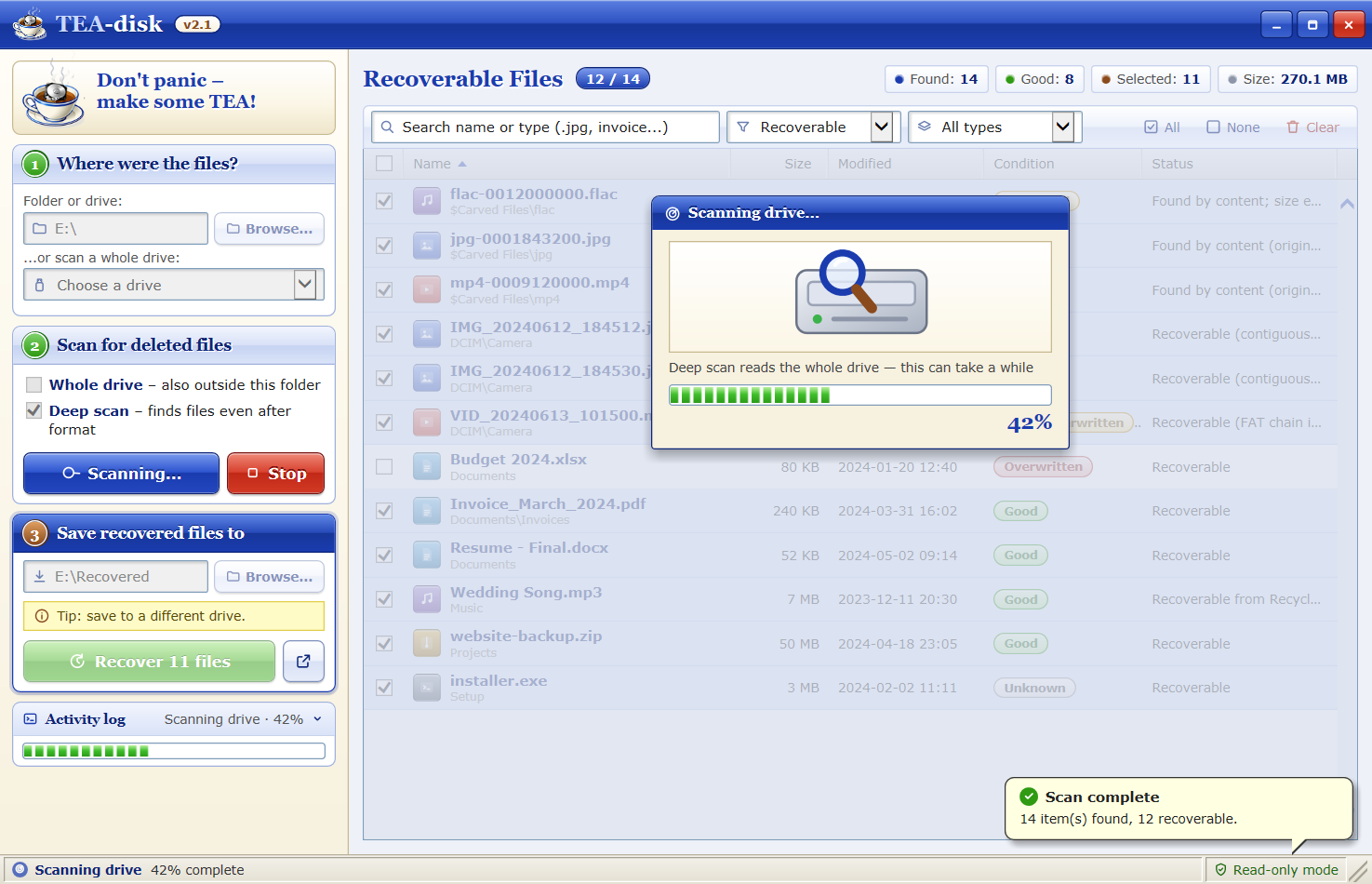
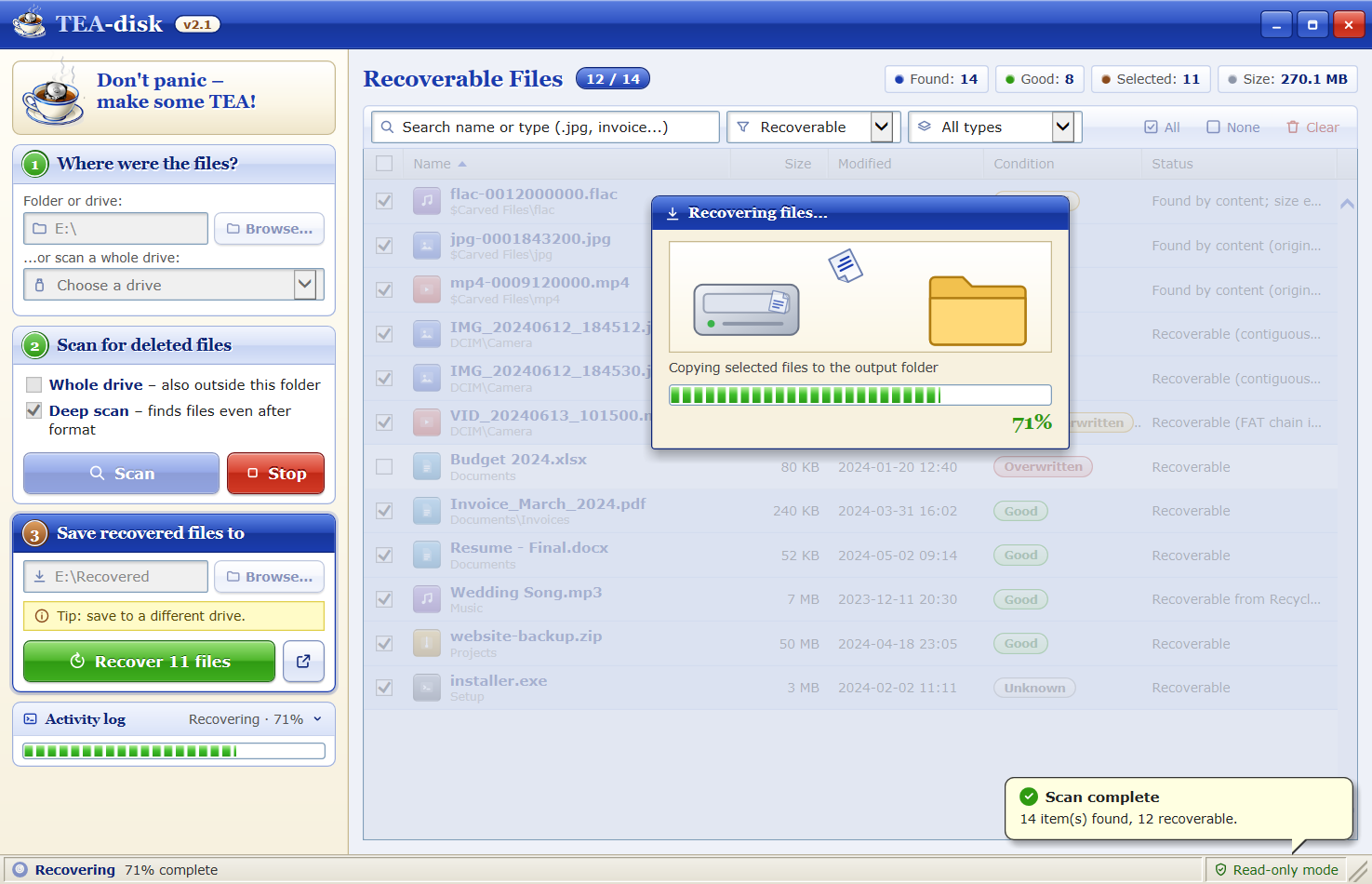
Click on a picture to view it in full size.
How To Recover Your Files in 3 Easy Steps
- 1Choose the folder or drive where the files were deleted.
- 2Scan with Quick Scan. Tick Deep scan for formatted drives.
- 3Recover the ticked files to a different drive.
Quick Scan or Deep Scan?
| Quick Scan | Deep Scan | |
|---|---|---|
| Original file names & folders | Yes | No |
| Shift+Delete / emptied Recycle Bin | Yes | Yes |
| Formatted or RAW drives | No | Yes |
| File types | All | 45+ common formats |
| Speed | Seconds to minutes | Reads the whole drive |
Tip: always start with a Quick Scan. If your files are not there, scan again with Deep Scan turned on.
From the Blog
 How to Recover Deleted Files on Windows 10 and 11
 How to Recover Files After Emptying the Recycle Bin
 How to Recover Deleted Photos from an SD Card
Frequently Asked Questions (FAQ)
Q: Is TEA-disk really free?
A: Yes! TEA-disk is freeware. No registration, no payment, no ads.
Q: Can I recover files after I formatted my drive?
A: Often yes. Turn on Deep scan. It searches the drive by file content. The original file names cannot be restored this way.
Q: Can TEA-disk recover files from my phone?
A: Not from the phone's internal memory – phones connect over MTP and encrypt their storage. A memory card from the phone, put into a card reader, works fine.
Q: Why do some recovered files from my SSD not open?
A: SSDs use TRIM and erase deleted data soon after it is deleted. Recover as quickly as possible. Hard disks, pendrives and SD cards give much better results.
Q: Why does TEA-disk ask for Administrator rights?
A: Reading deleted data needs direct, read-only access to the drive, which Windows only allows for administrators. Nothing is written to the scanned drive.
Q: What do "Good", "Partly overwritten" and "Overwritten" mean?
A: Good = the file's space is still free, so it should open. Overwritten = another file has used that space; the recovered file is probably damaged.
